The Artist Blueprint dashboard explained screen by screen: the campaign tabs and tools in the sidebar, what the Overview tab flags, and how What to do picks your next move.
You logged in, you opened a campaign, and now a screen full of cards is looking back at you. Here is the tour I would give you if I were sitting next to you.
This walks through the Artist Blueprint dashboard view by view: where the navigation lives, what the Overview tab is telling you, and how What to do picks your next move. For the bigger picture of what the platform is and who it serves, start with the product tour. This one is for once you are inside.
Every screenshot here comes from the demo account, a fictional band called Nightshift Wives, so the names and numbers on them are sample data.
The Artist Blueprint dashboard, from the sidebar in
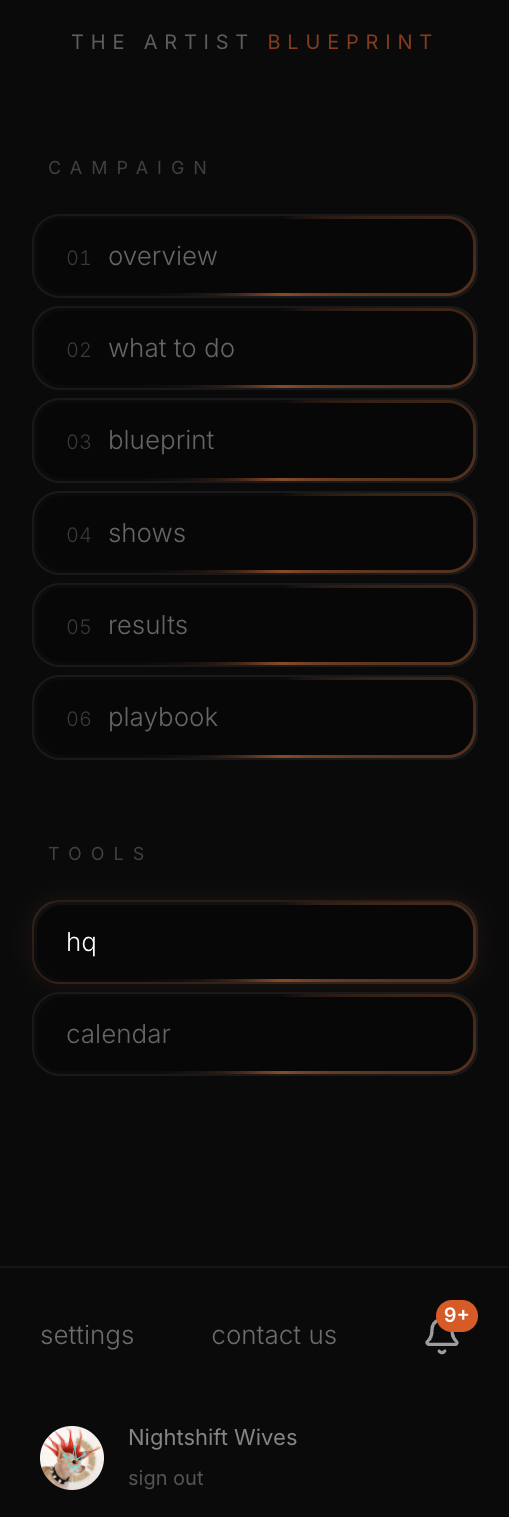
Everything starts in the sidebar. The top half belongs to the campaign you are working in, and its tabs are numbered: Overview, What to do, Blueprint, a fourth tab named for the kind of campaign (Shows on a show campaign, Tour on a tour), Results and Playbook. Read in order, they follow the life of a campaign: see where things stand, do the work, shape the creative, run the dates, read what came back, decide what is next. There are four kinds of campaign: Branding, for your visual identity, creative direction, EPK and press; Rollouts, for a single, an EP or an album (here is how to plan one); single live performances; and tours.
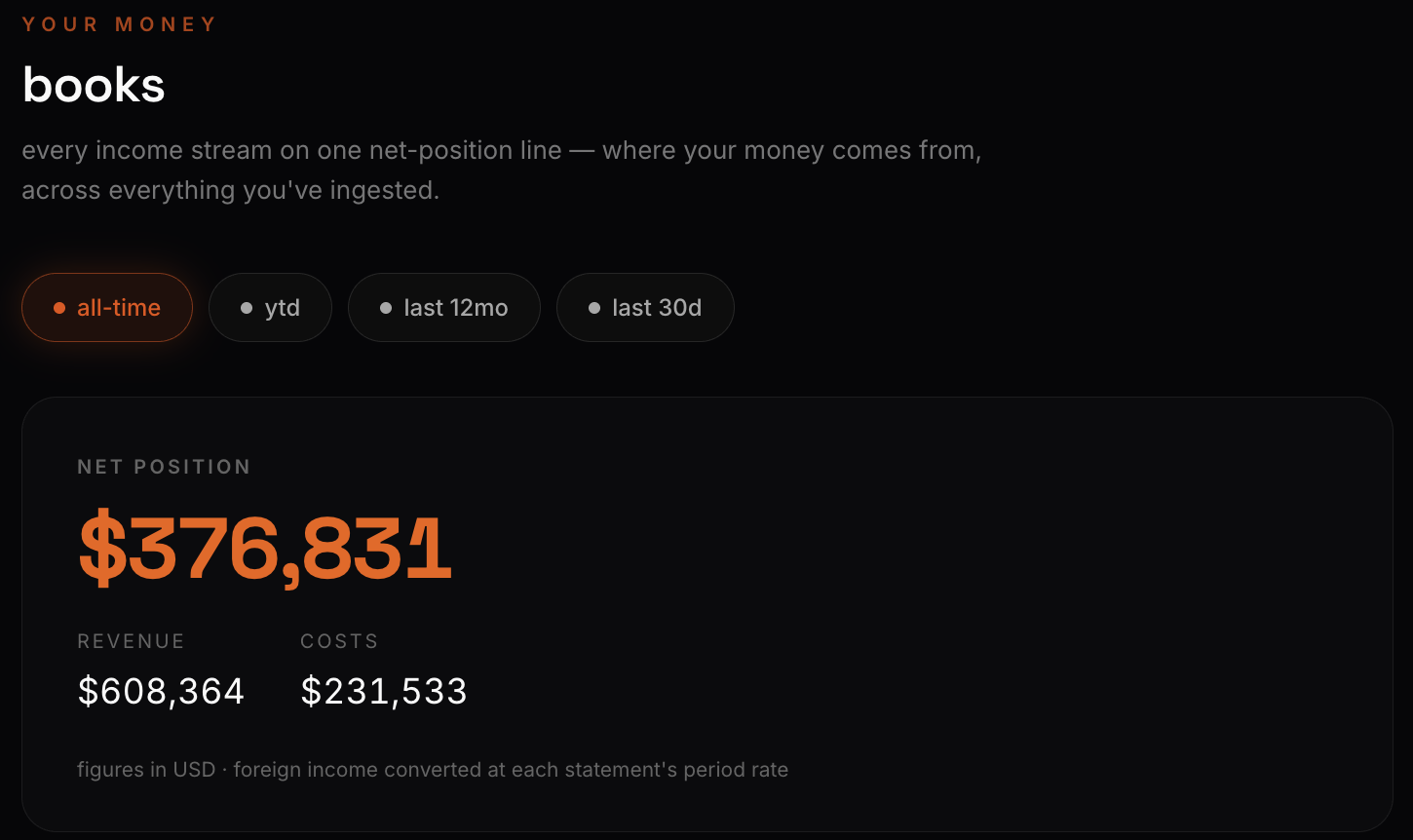
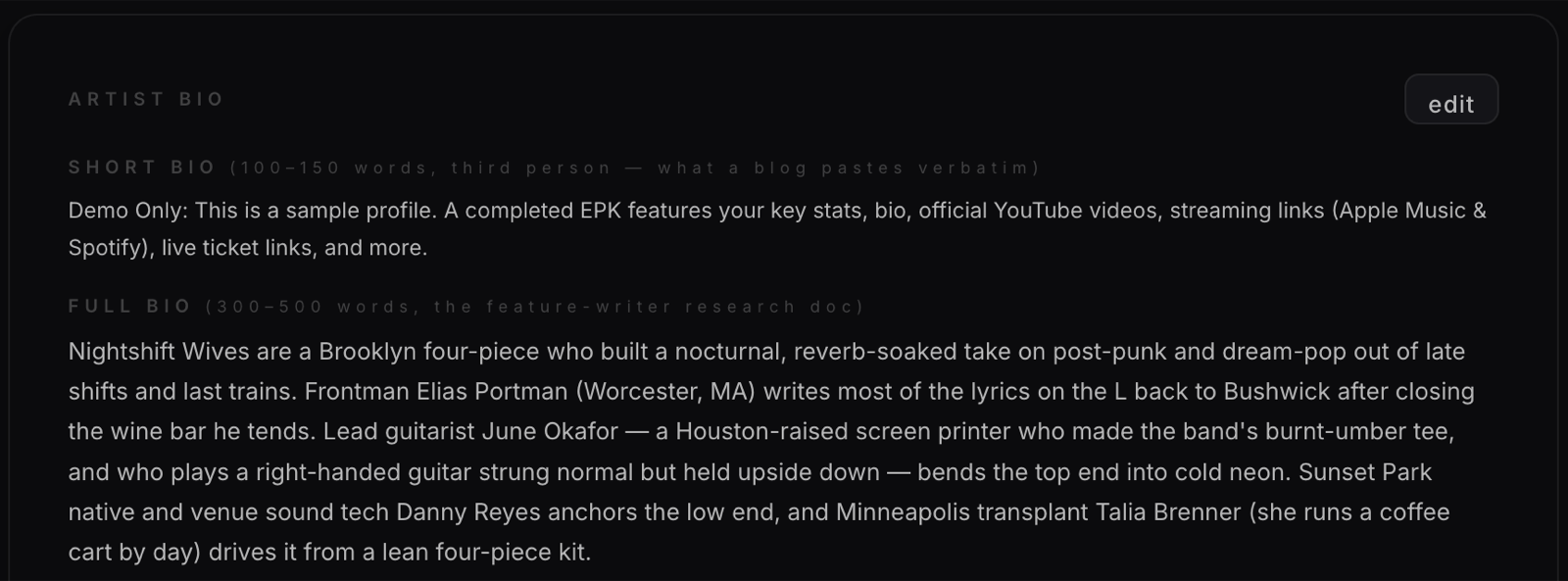
Below the campaign tabs sit two tools that belong to your whole career rather than one campaign. HQ is your back office. It holds your EPK builder and the public link you send out, Blackbook for every industry contact (each one shareable with a QR code), your catalog, presaves, media and audience data, Books, which breaks down your royalties and the money from all your campaigns combined, and Passwords for the logins that run your career. Calendar puts events, releases, posts and tasks on one timeline.
Overview: where the campaign stands today
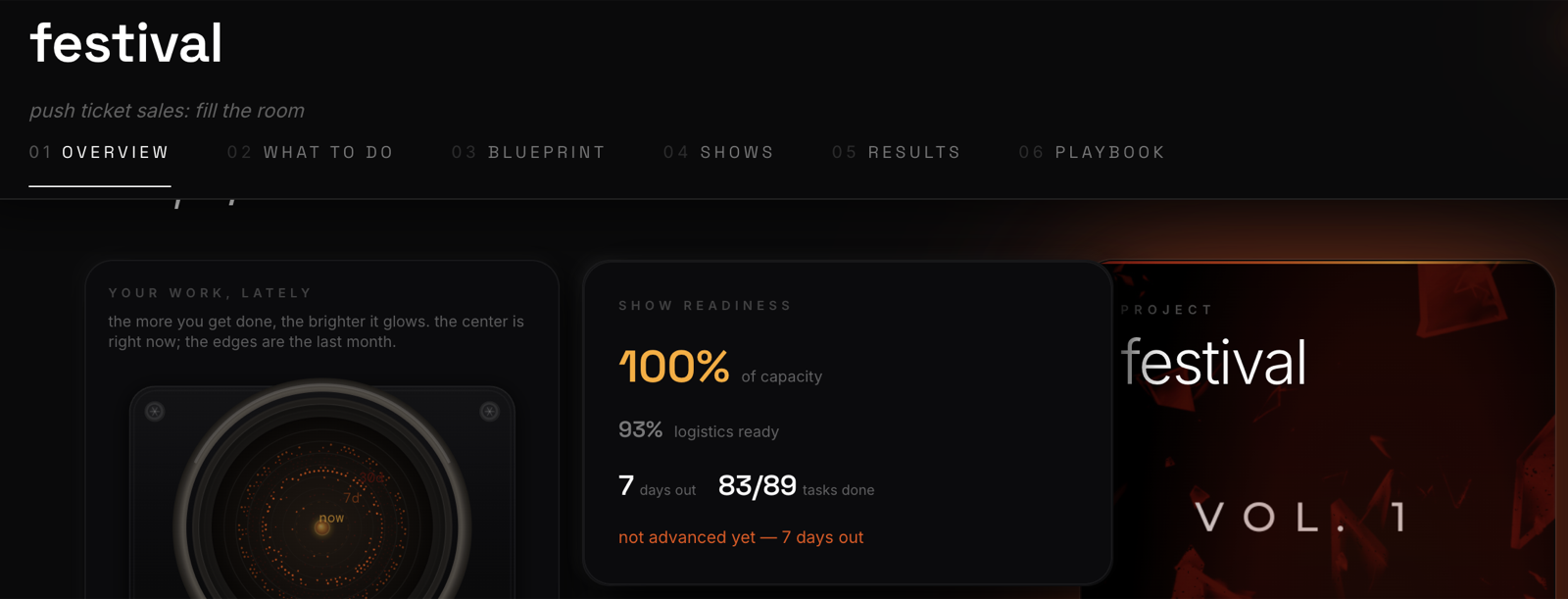
Open Overview first. On a show campaign the card that matters is Show readiness, which puts capacity sold, logistics ready, days out and tasks done side by side. In the demo it flags the show as not advanced yet, seven days out, meaning nobody has confirmed the logistics with the venue.
Next to it sits a funnel that runs from Reach through Engage and Listen to Commit, and a card called What to watch. In the demo campaign, What to watch notes that engagement is flat and suggests a different hook, format or time of day. It also catches a Brooklyn show that is on sale with no ticket link, the kind of mistake that quietly costs money until somebody notices.
What to do: one list, already sorted
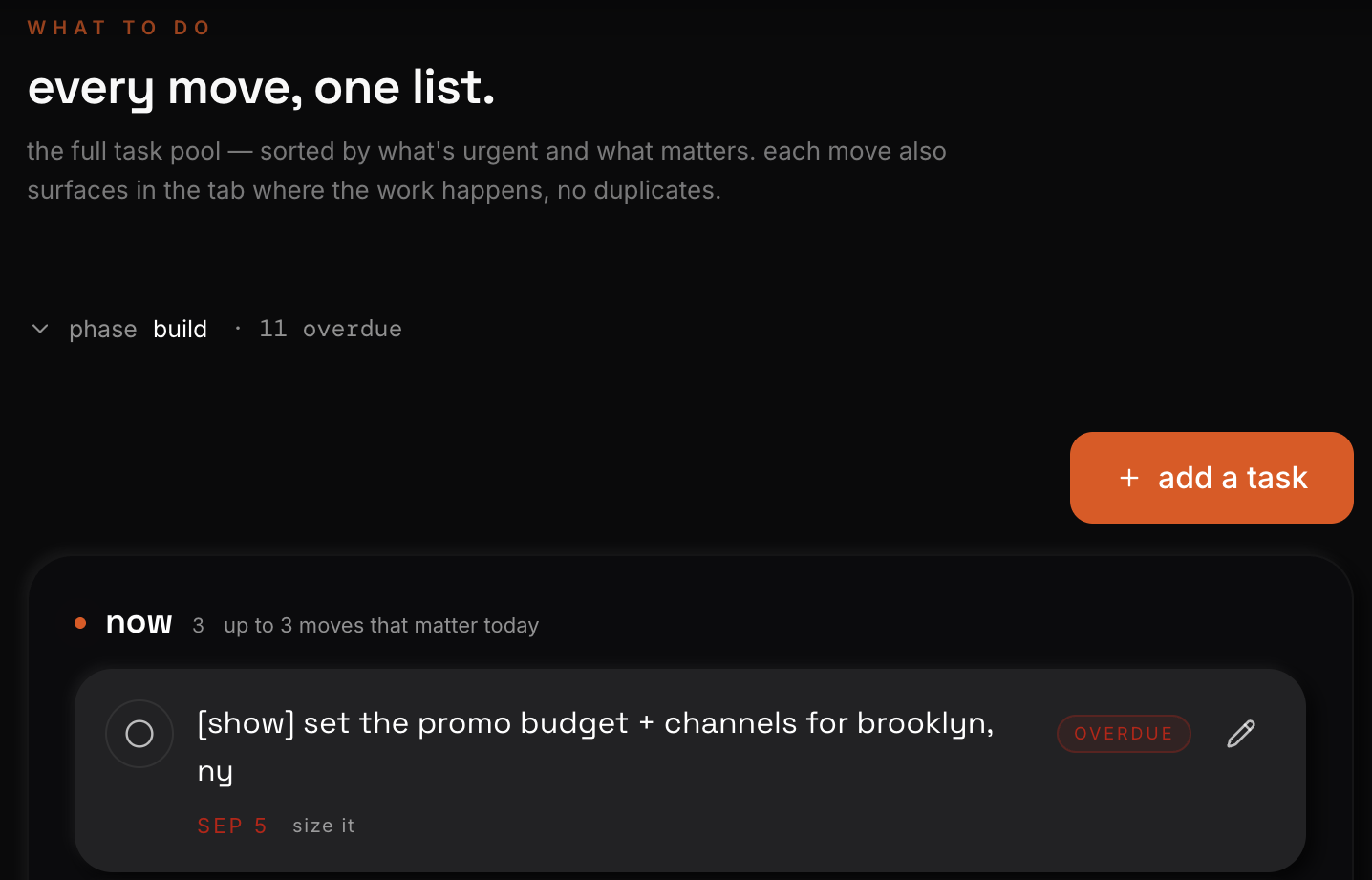
What to do is the whole task pool for the campaign in one list, sorted by urgency and importance. Its own description promises that each task also appears in the tab where the work happens, without duplicates, so you can work from the list or from the screen the task belongs to.
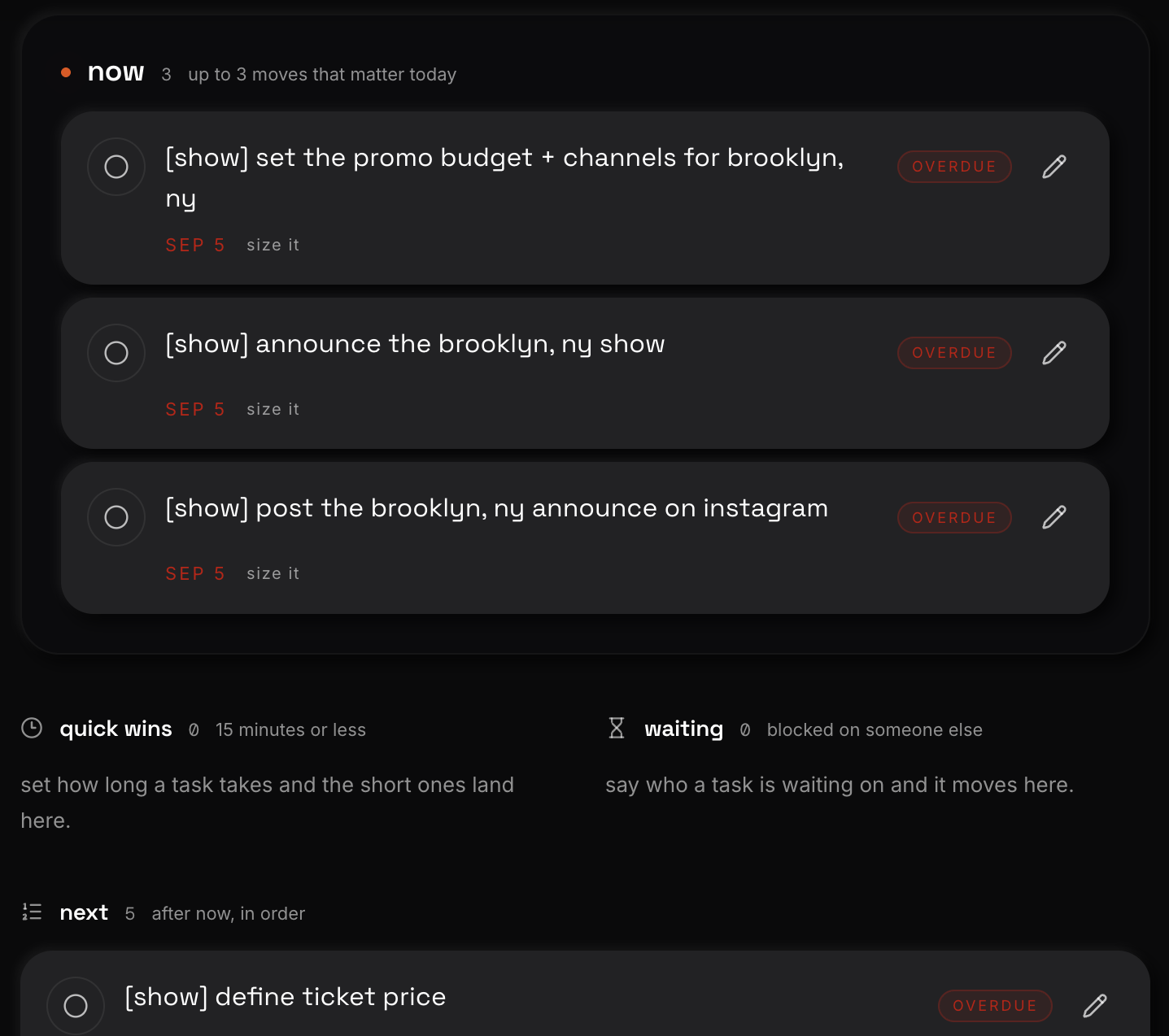
The list splits into four buckets. Now holds up to three moves that matter today. Quick wins collects tasks you have marked as fifteen minutes or less. Waiting is for anything blocked on someone else, once you say who. Next is everything after Now, in order.
If you build one habit around this screen, make it this: open Now, finish one thing, and clear a quick win whenever you have ten spare minutes.
Blueprint, Results, Playbook and Ask Jeff
Blueprint is the campaign's creative home: directions, references, a palette, an idea board and a running to-do list. Results shows performance from your uploads and connected accounts, and Playbook is where an advisor reads those results and names the next move. Both get their own walkthroughs later in this issue.
The button in the corner of every screen is Ask Jeff, the built-in assistant. Its starting prompts cover what you would ask a good manager: what should I do next, explain this page, how is my campaign doing, help me finish a task, and I am stuck on something.
None of this organizes a career by itself, and the habits behind any system that works still apply. What the dashboard does is keep those habits in one place and put the thing you forgot on the screen before it costs you. Here is who The Artist Blueprint is built for.
Open Overview, read What to watch, finish one thing from Now. That is the whole daily routine, and it takes less time than scrolling a group chat to find out what you missed.
Read next: How to Organize Your Music Career (Without More Apps) →
Running your campaign and ready to be heard? Submit your music →
Working on something bigger than one release?
We build and run campaigns for artists and brands — testing a single, rolling out an album, taking a tour global. Same team from brief to launch.
Comments